 Tabko
Guide
Keep a copy beyond your browser.
A portable JSON backup is the way to preserve Tabko data separately from this Chrome profile.
Export a backup
- Open the workspace and its backup/export tools.
- Choose the full JSON backup option to include saved sessions, settings and retained versions.
- Save the file to a location you can find again. Keep another copy outside this browser profile when the data matters.
- Check that the downloaded file exists and has content before uninstalling or clearing extension data.
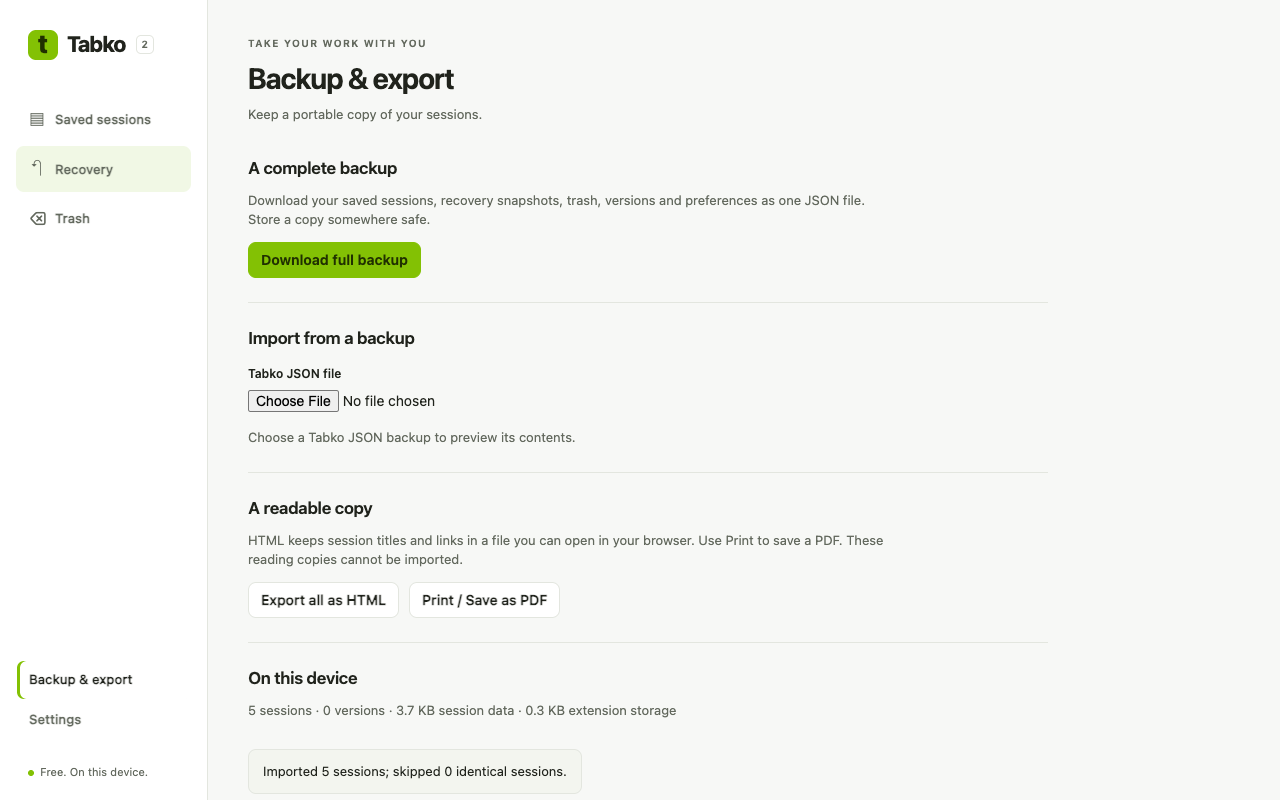
Import into Tabko
- Export the data already in the destination profile as a precaution.
- Open Tabko’s import tool and select your JSON file.
- Review the import result and inspect important sessions, their tabs, settings and versions before relying on the imported copy.
- Keep the original file until you have confirmed the result.
Moving from version 1
Tabko 2 accepts existing v1 session exports. Import the local JSON file through the same import tool. Older files may not contain every v2 setting or version field; missing information cannot be recreated. Importing local data does not activate old account or cloud services.
Bookmarks and printable views
HTML export is useful when you want a bookmarks-style list. A printable view is useful for a readable reference. Use a full JSON backup when you need to preserve Tabko’s own settings and retained versions.
If import fails
Keep the original file unchanged. Confirm that it is a Tabko JSON export rather than HTML or a printed document. Contact support with the error and version details; remove sensitive URLs before sharing any example.