 Tabko
Guide
Save it now. Return when you’re ready.
Use a named session to put a browsing task aside without relying on a row of open tabs.
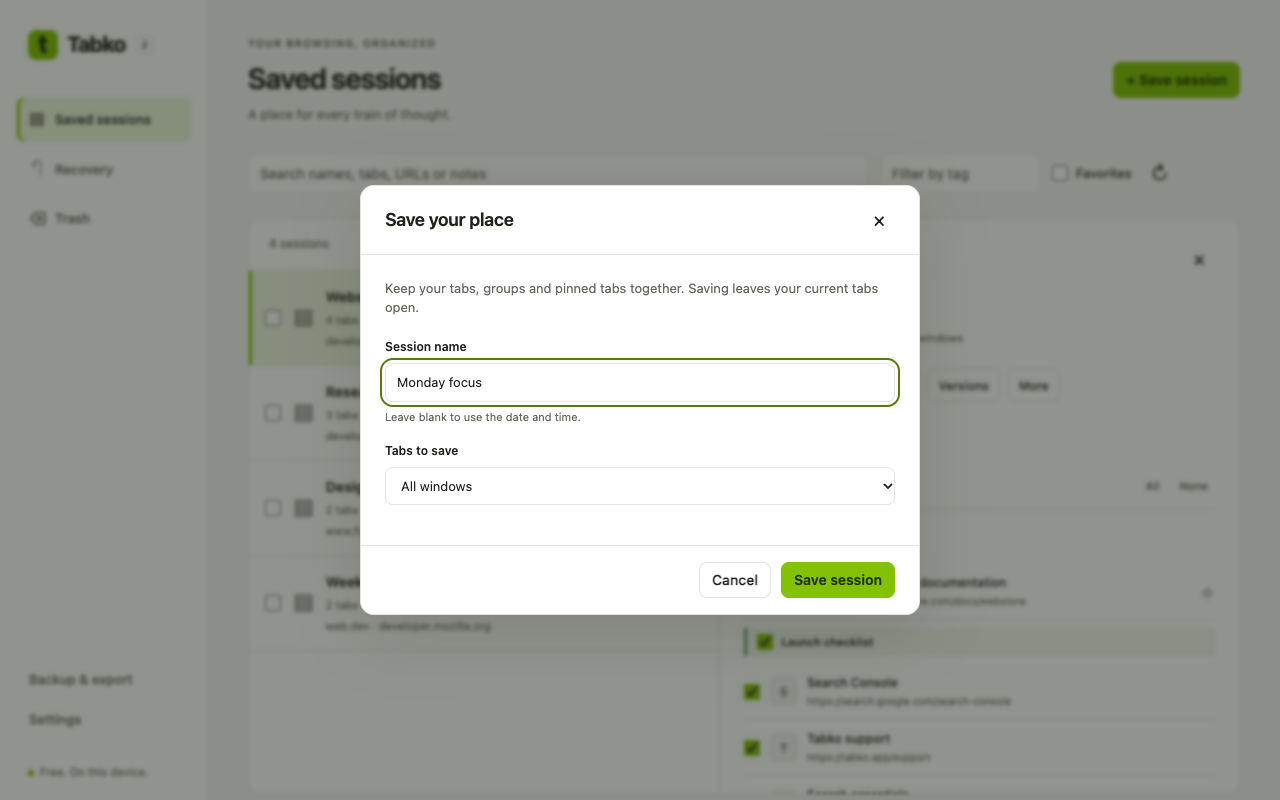
Save your first session
- Open the tabs you want to keep. Click the Tabko icon in Chrome’s extensions menu; pin it if you want a shorter route next time.
- Use the quick-save panel to choose the available save scope and give your session a recognizable name.
- Save, then open the workspace and inspect the session. Confirm that the tabs you care about are present before closing the originals.
Restore just what you need
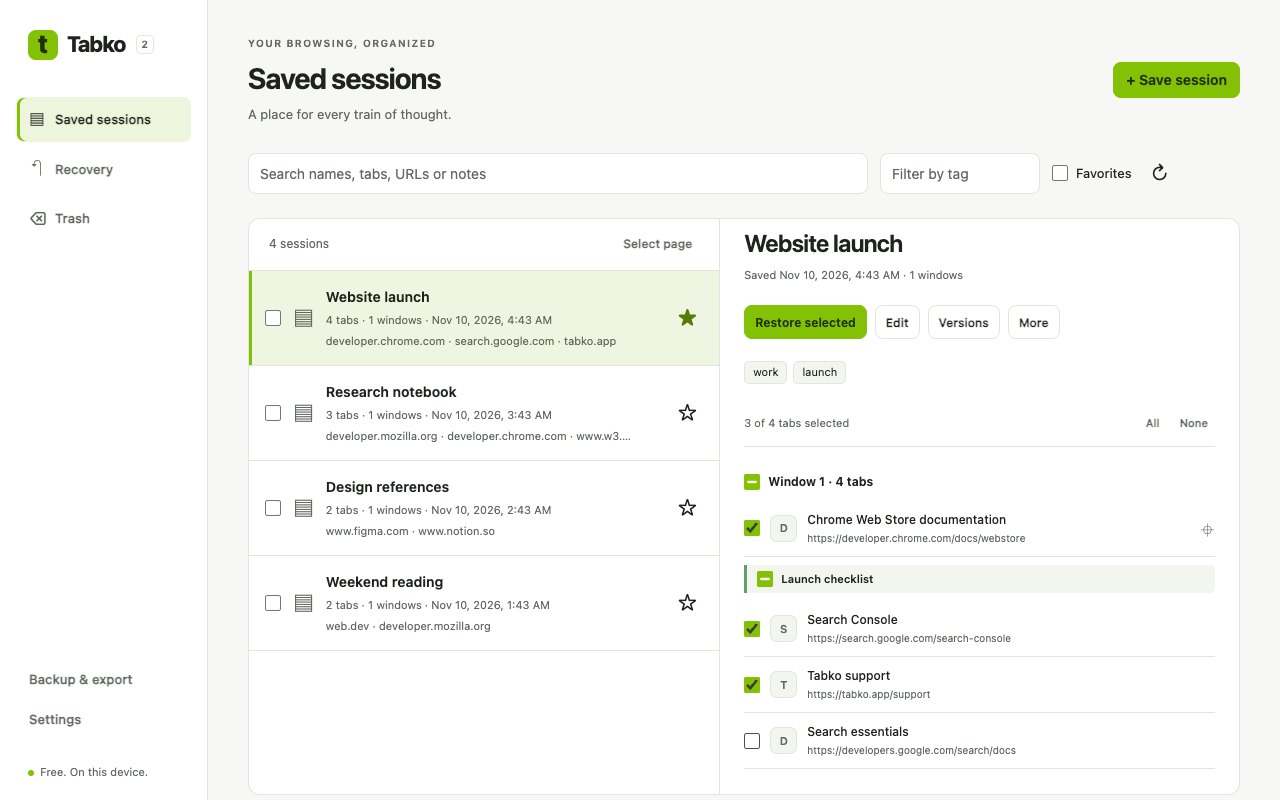
- Open the Tabko workspace and find your session. Search by a useful word or use the tags you added.
- Open the session details and review the tab list.
- Select the pages you want, then use the restore action. Use the whole-session action when you want the complete saved task.
- Let the websites load and sign in again where required.
Before you move or uninstall
Export a JSON backup and keep it outside the browser profile. A saved session in local Chrome storage is not a separate backup.